
Focus modes are powerful tools for automating settings and custom home screens on the iPhone. With a Focus Mode, your iPhone home screen and apps can change when you arrive at work and then change again when you arrive home. You can customize who can notify you and which apps can send notifications based on what you should be focusing on. When your focus changes, your other devices can also automatically sync your focus mode. I have my Apple Watch, iPad, and Mac all change focus modes at the same time.
I have the following Focus Modes:
- Do Not Disturb
- Work
- Personal
- Church
- Practice
- Golf
- Reading
- Driving
There is a limit of 10 Focus Modes and I am right about there. The beauty of these modes is that they can be automated to start and stop based on specific locations or other app triggers. There is something about seeing a different wallpaper and set of apps on my home screen they helps my brain know what I should be focused on at any given time.
Setup
In Settings - Focus is where you can set these up. You can choose which lock screen and which home screens should be used with each mode, as well as a list of contacts are who are allowed or not allowed to bother you, as well as a list of apps that are allowed to send you notifications. This is where you can also configure when the focus mode should activate or de-activate. You can also change modes from control center or with Siri.
The dock remains consistent across focus modes.
- Phone
- Email - Outlook app currently
- Browser - Quiche browser currently
- Messages
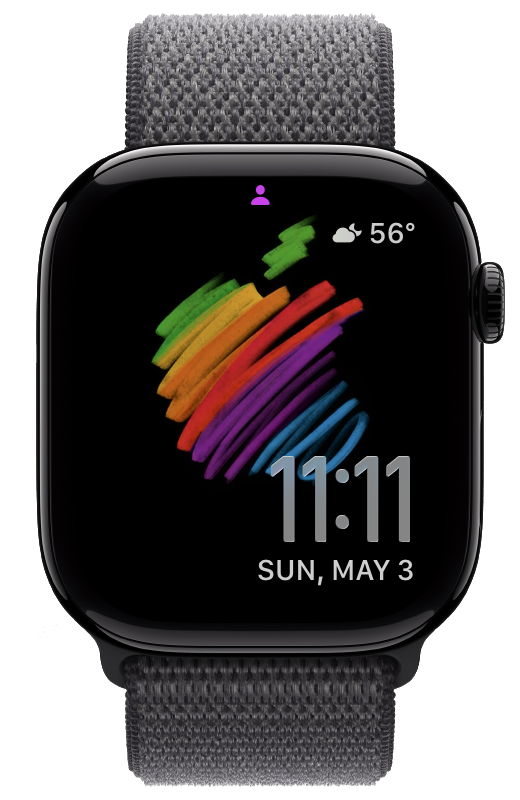
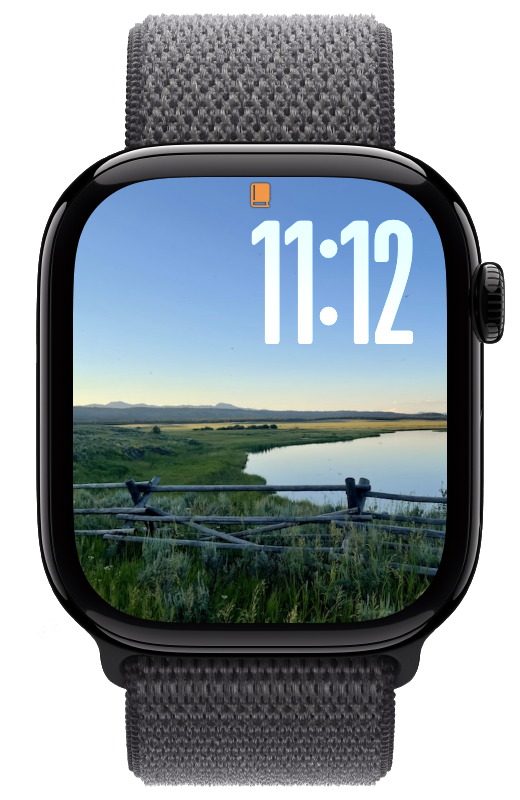
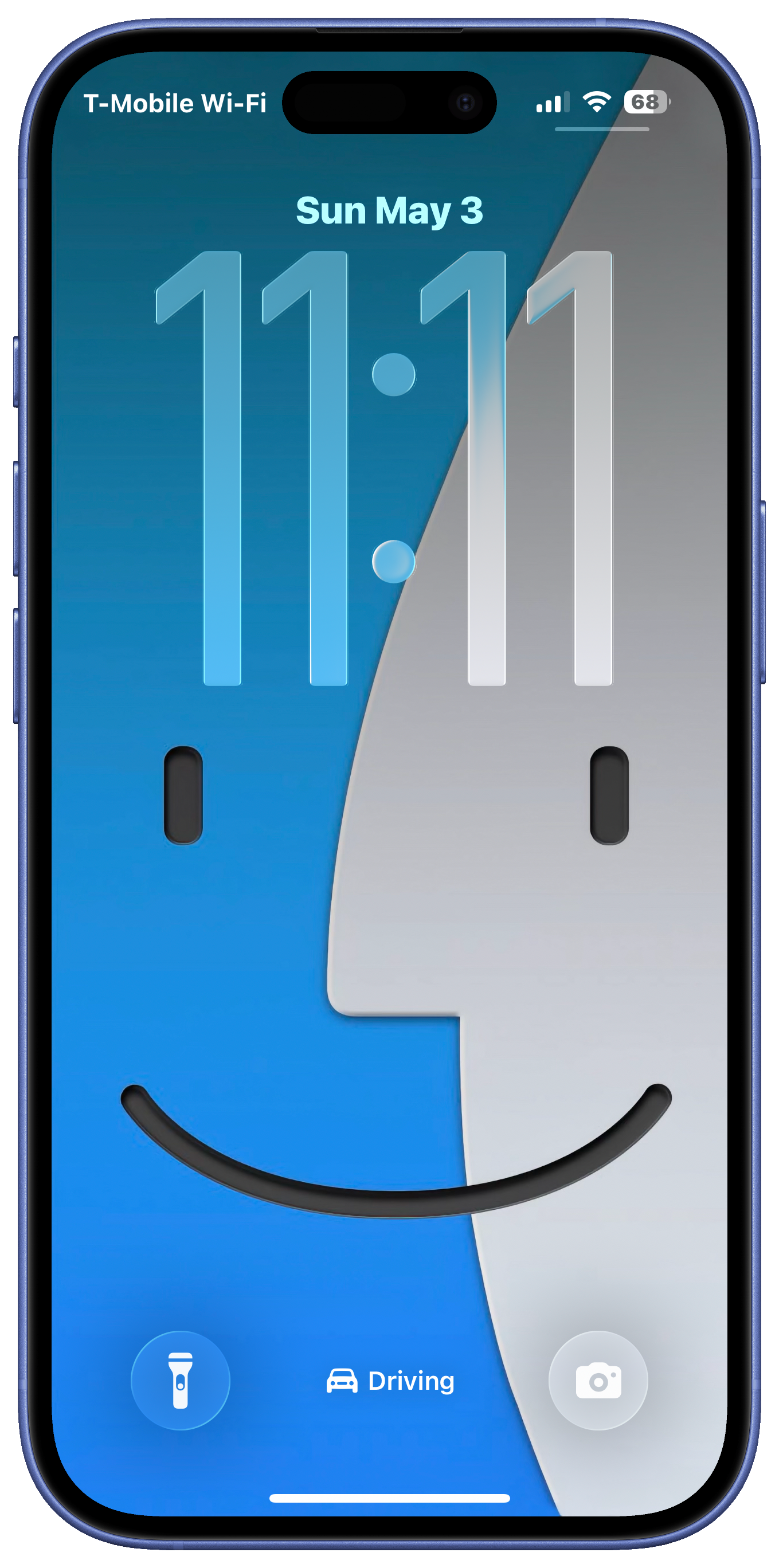
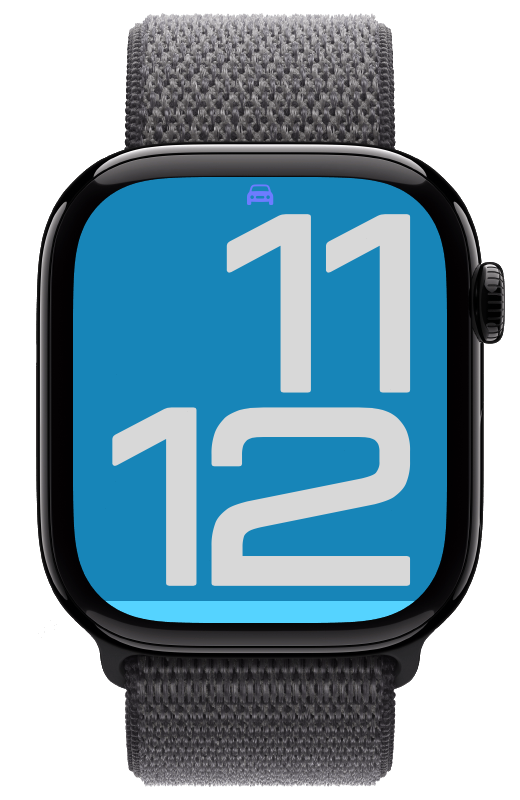
Here are screenshots, for both phone and watch, and my thoughts about how I use each of these modes:
Do Not Disturb
Do Not Disturb comes as a built in Focus Mode. This one is great for silencing all of the noise and eliminating distractions. I use at at night when I don’t want any more text messages, and I also use it for concerts.
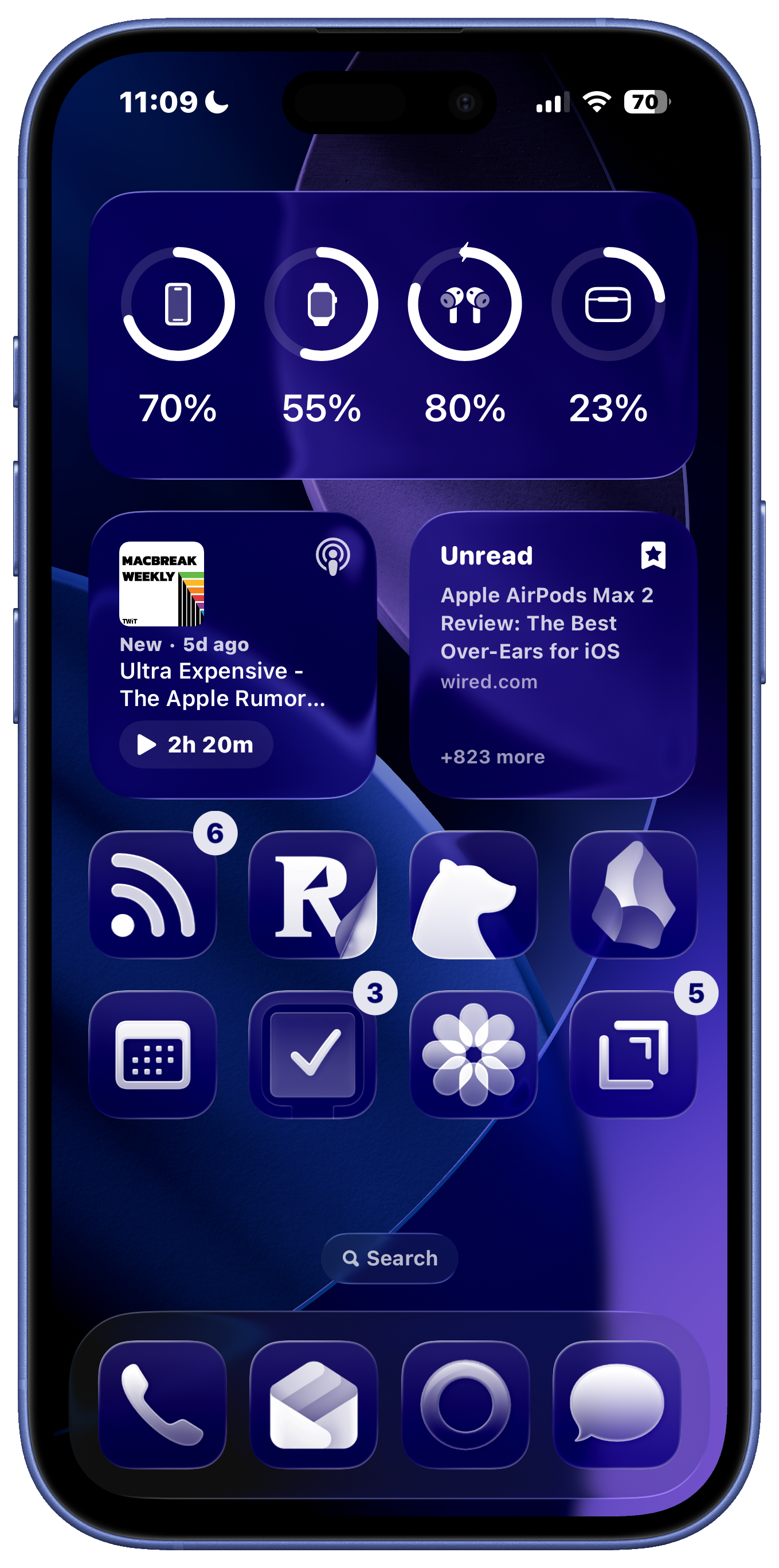
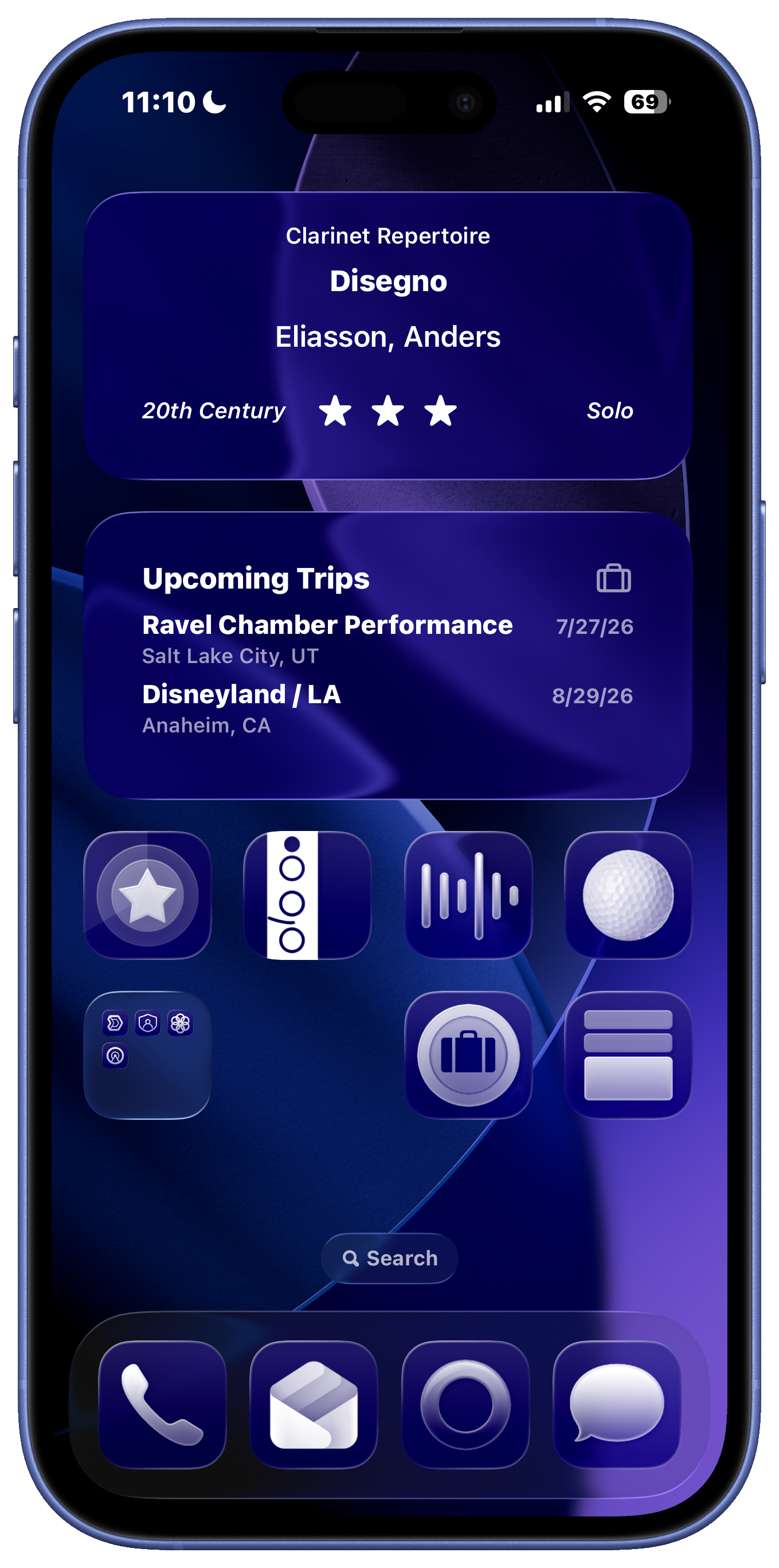
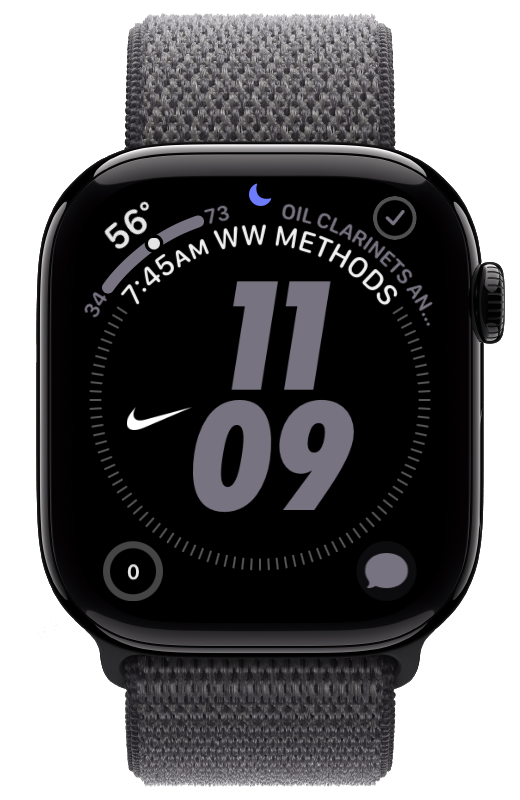
Work
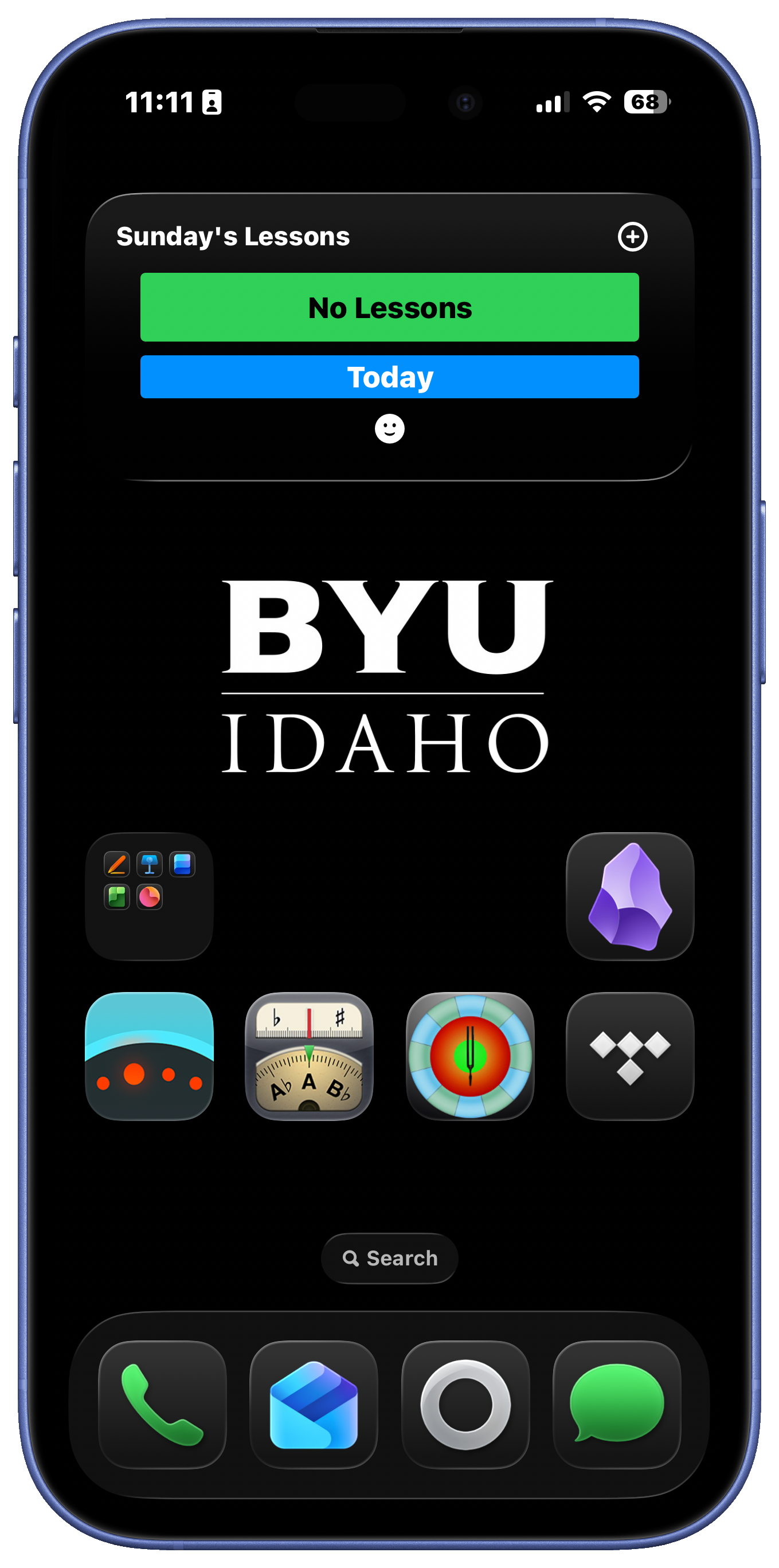
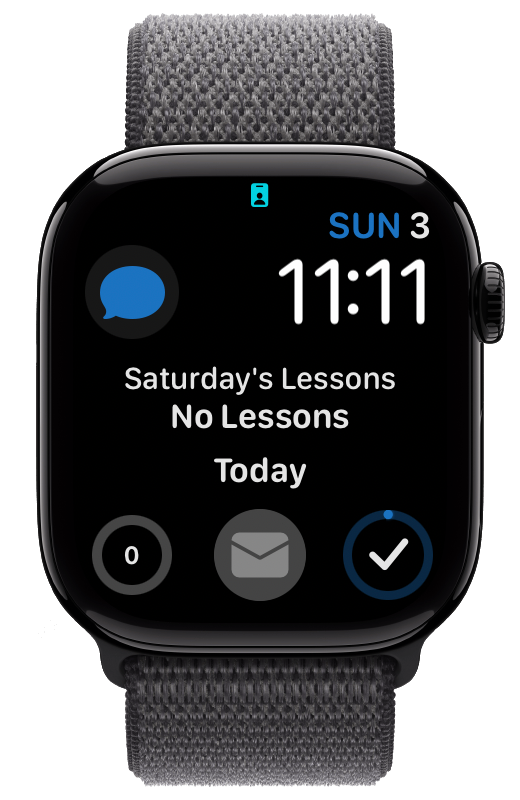
Work is built around the apps I use for teaching college music courses and private clarinet lessons. It activates based on location when I arrive at work. I use two pages of home screens, one page for my schedule, to do items1, and apps for classroom teaching, and one page for clarinet practice and private music lessons.
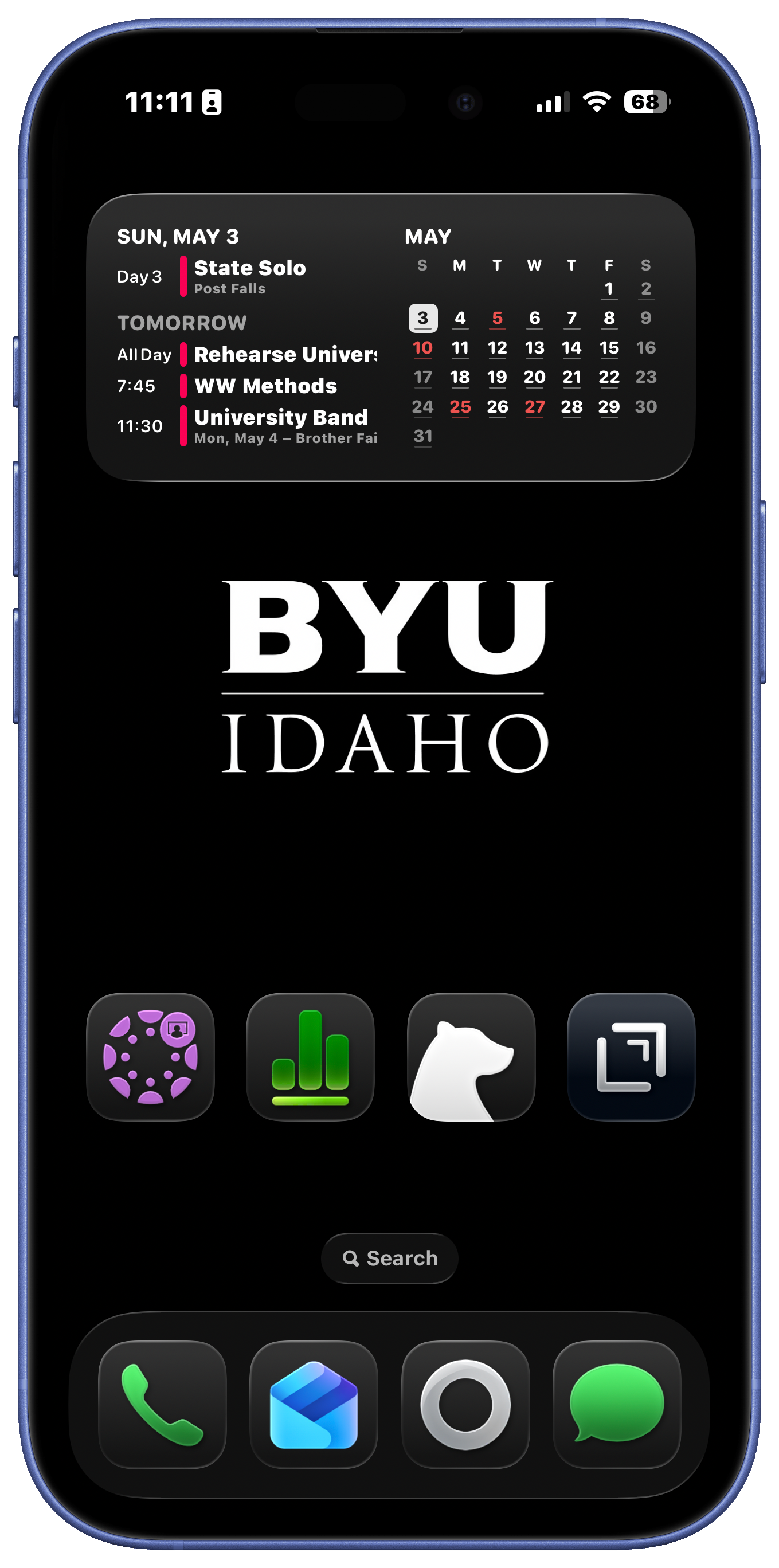
Personal
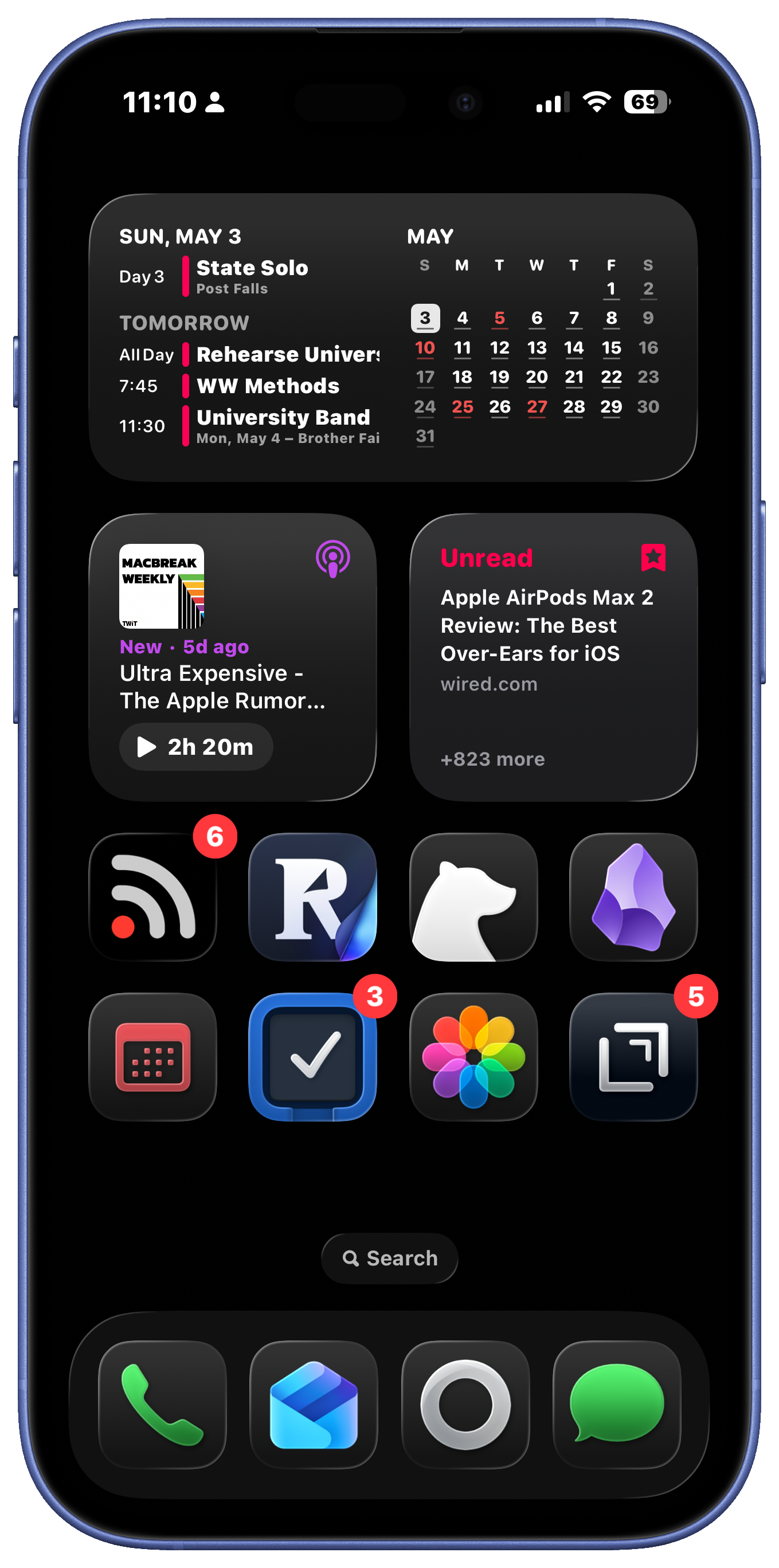
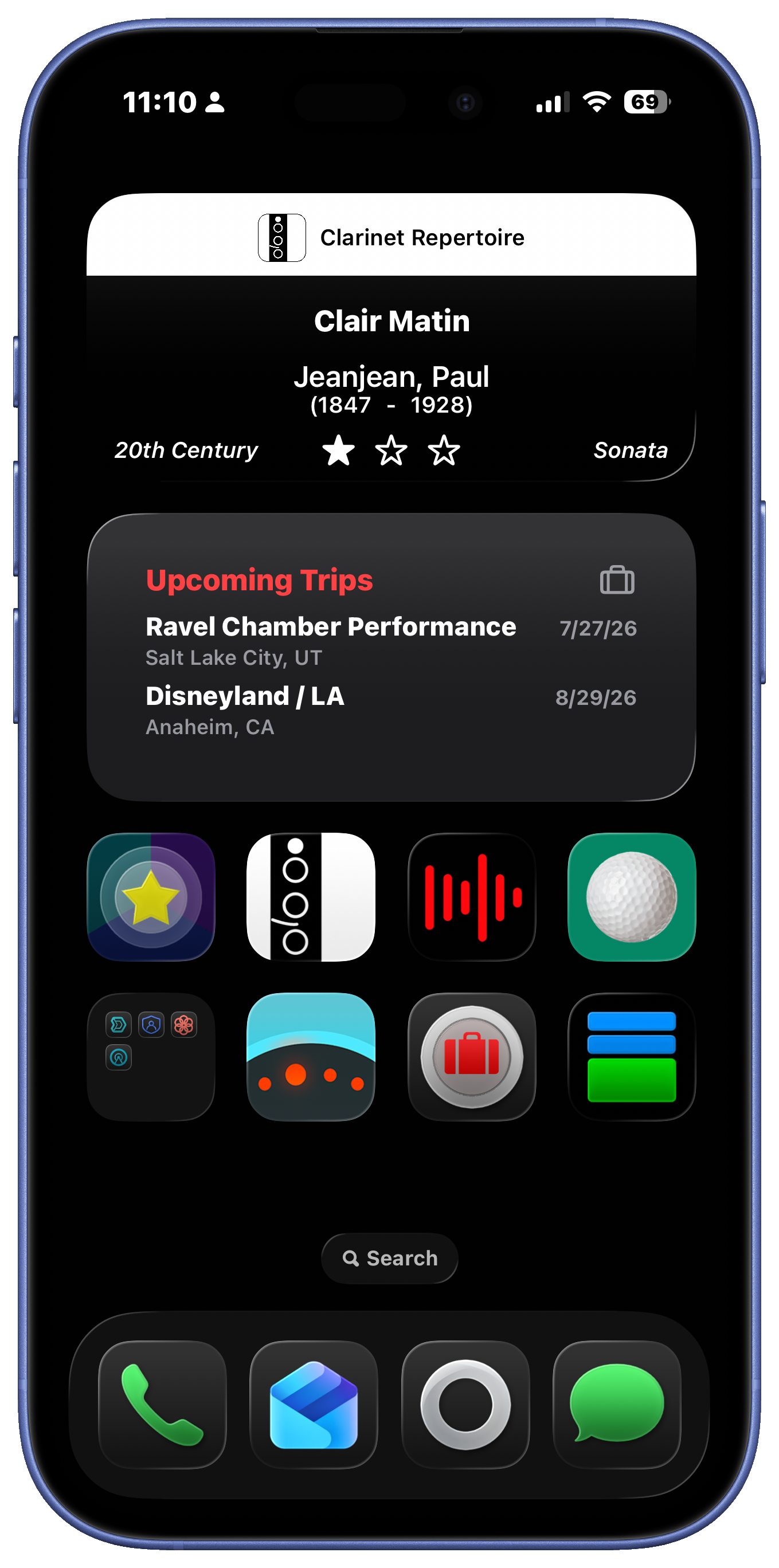
My Personal focus mode activates when I arrive at home. I also use two home screens of my most-used apps and widgets.2 I make good use of widget stacks. I liken to have a pile of widgets that I can swipe between. I cycle between my calendar, to do list, battery status, and a few favorite shortcuts. My Personal Focus Home Screen also includes:
- Podcast App Widget
- GoodLinks Recent Items Widget
- Unread RSS app
- Reader - Read it later app
- Bear and Obsidian Notes
- Minical - calendar app
- Things
- Photos
- Drafts - quick capture for notes
Church
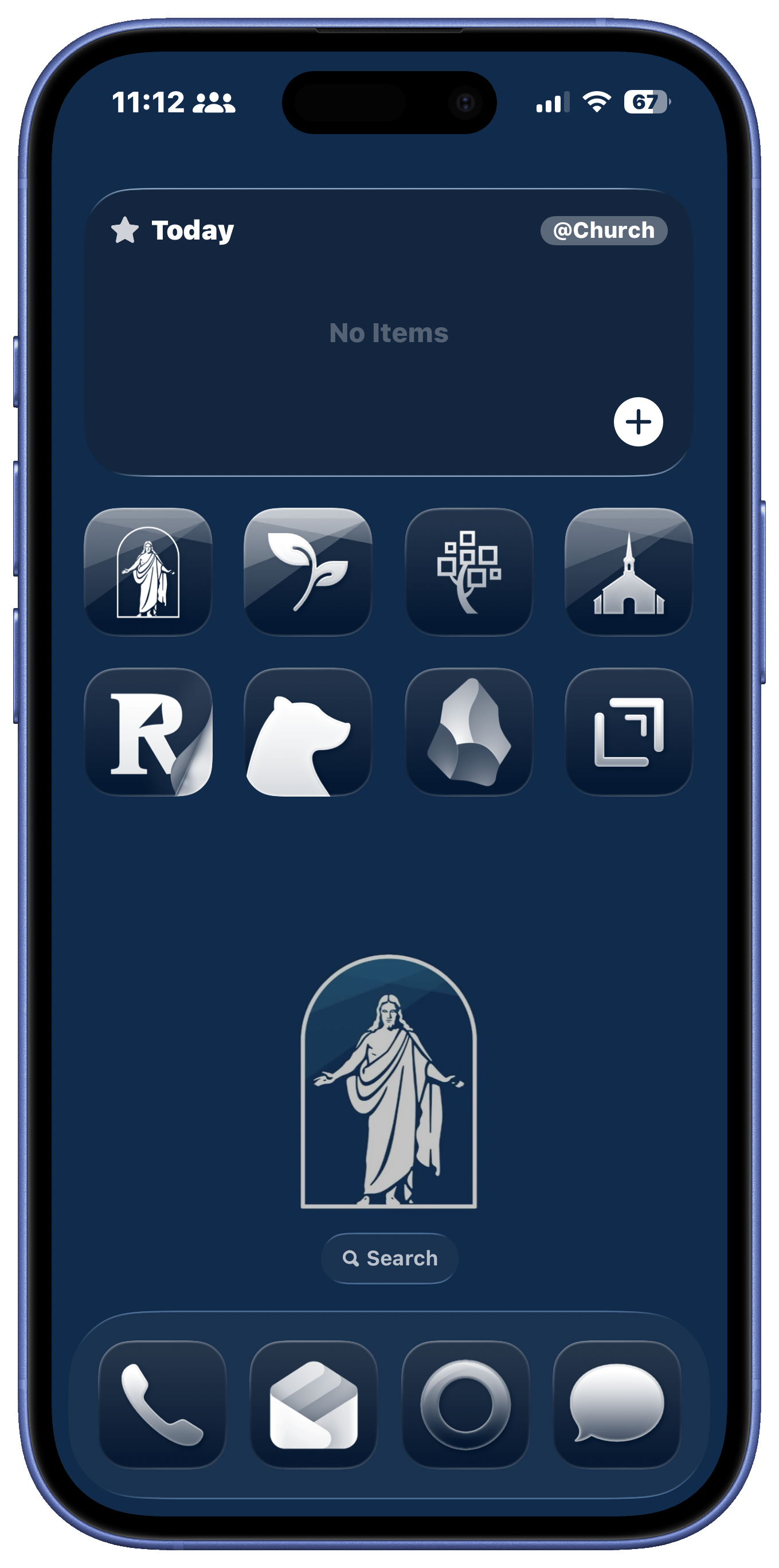
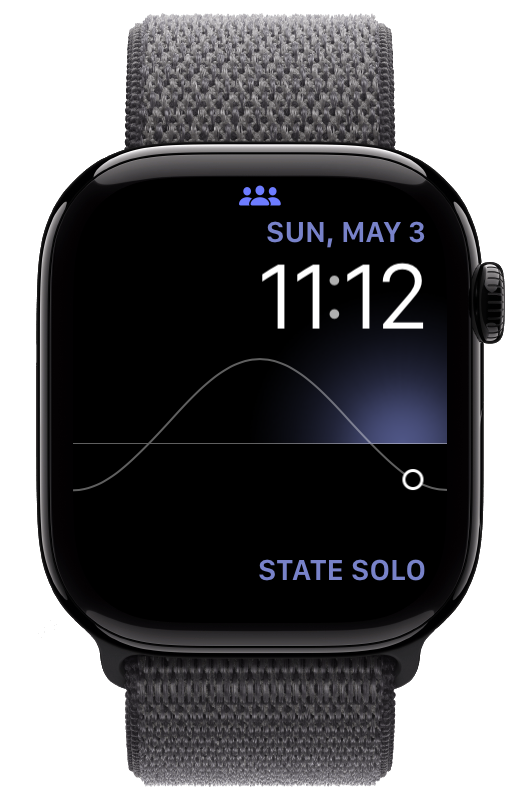
My church focus mode activates when I arrive at my church building. It is a one-page home screen, with a custom wallpaper with my church’s logo. My church home screen includes a widget stack with my calendar and to do list, filtered to only show tasks that are church tasks. I then just have a few apps for scriptures, hymns, and note taking apps.
Practice
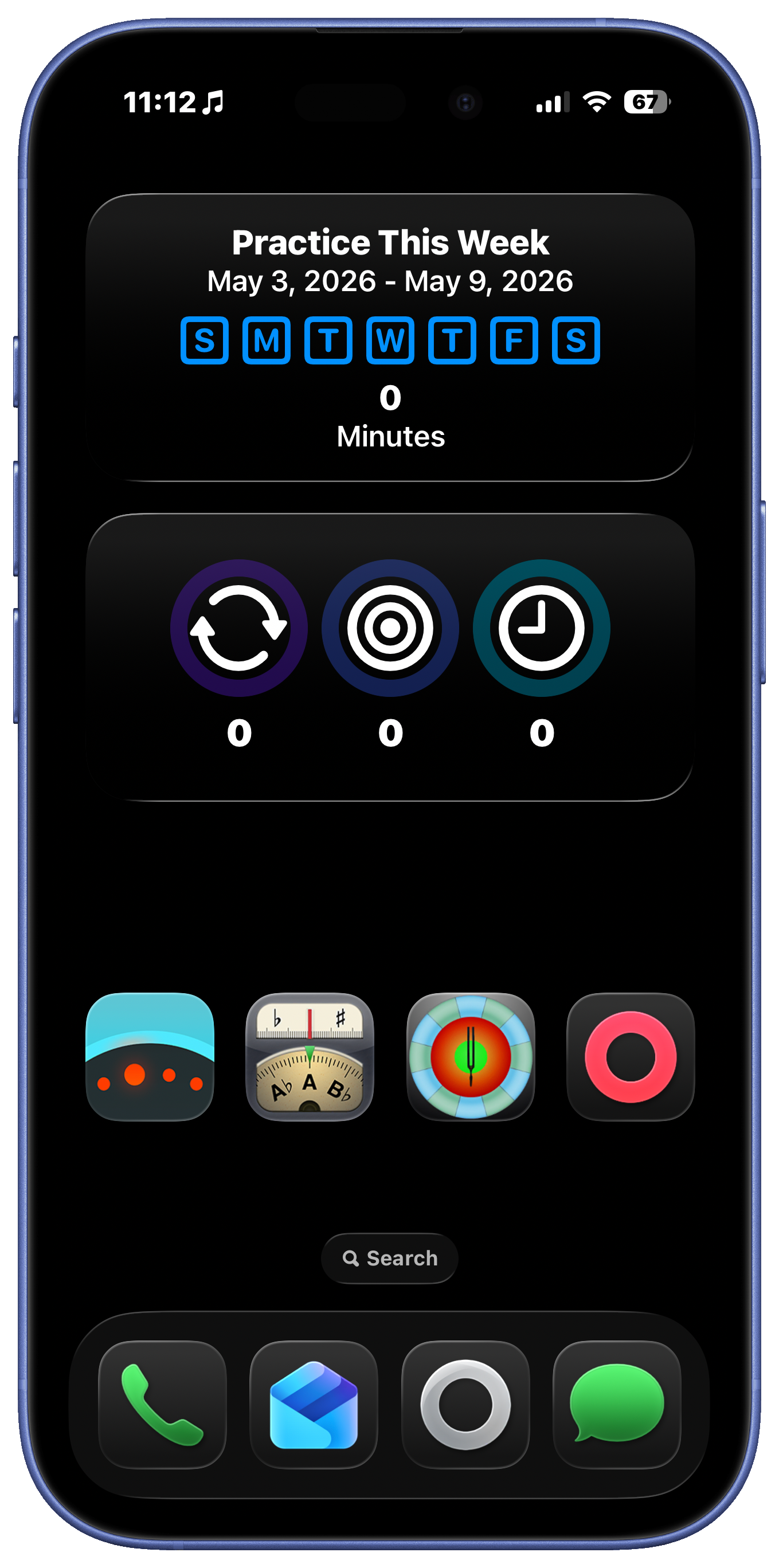
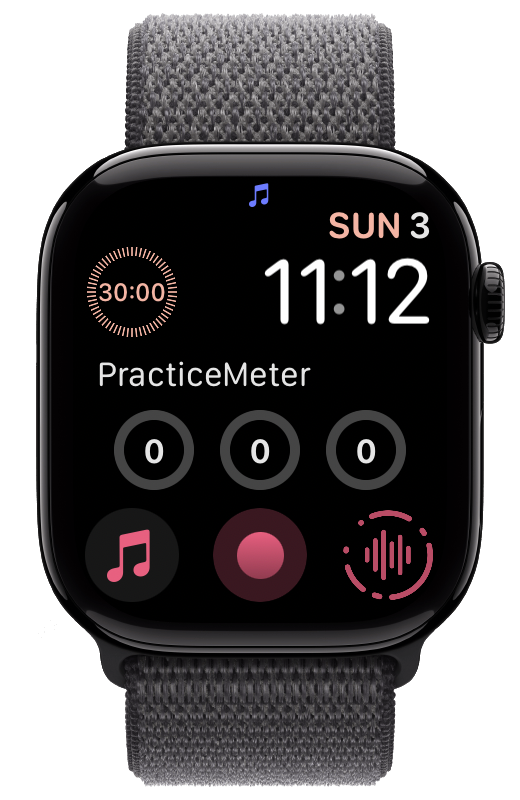
My practice focus mode is to help me focus for clarinet practicing. It is only one home screen of apps. I have two widgets to show my weekly practice and daily practice hours.3 The apps on my practice screen include a metronome, tuner, and an app for quick record.4
Golf
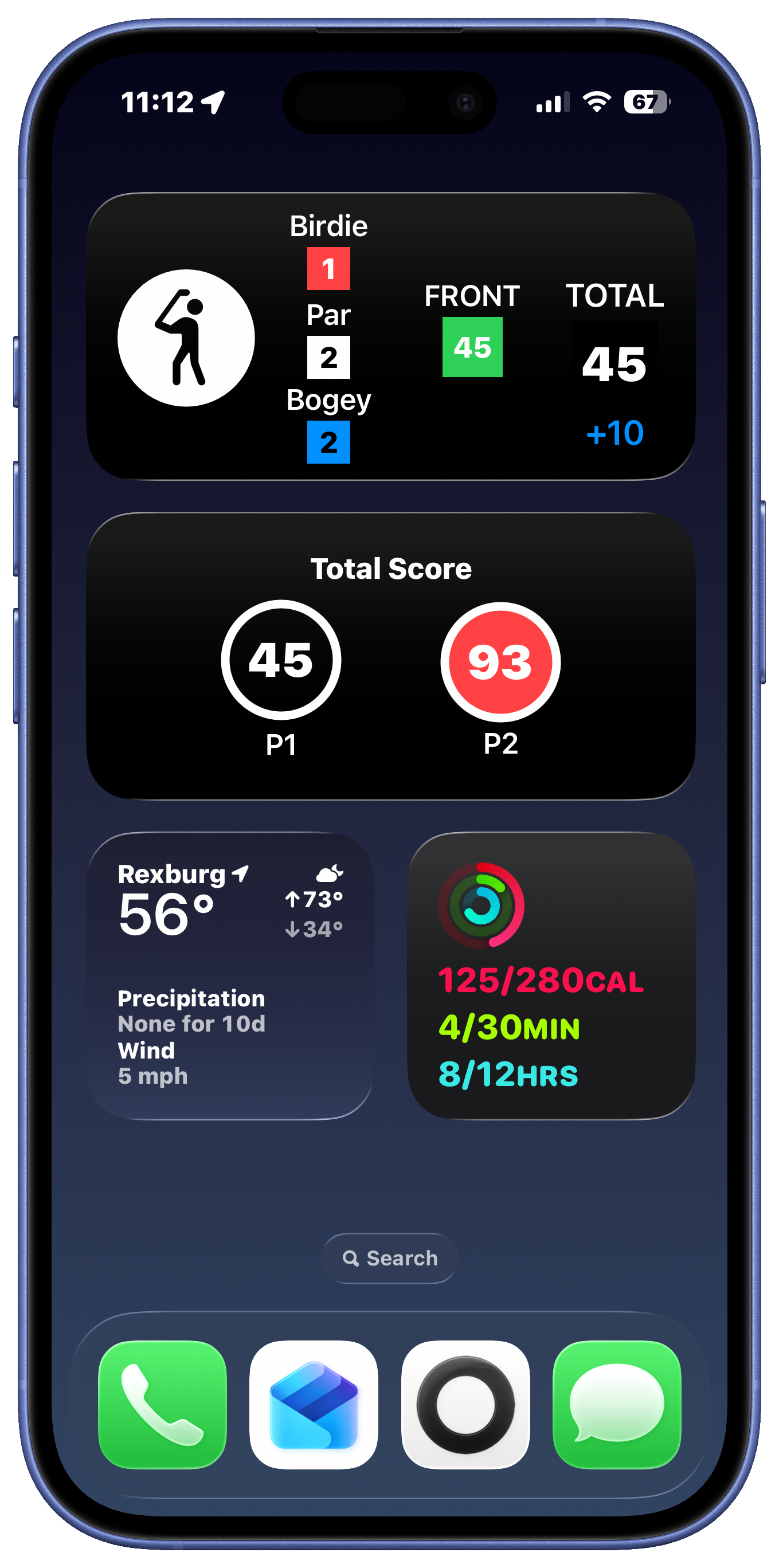
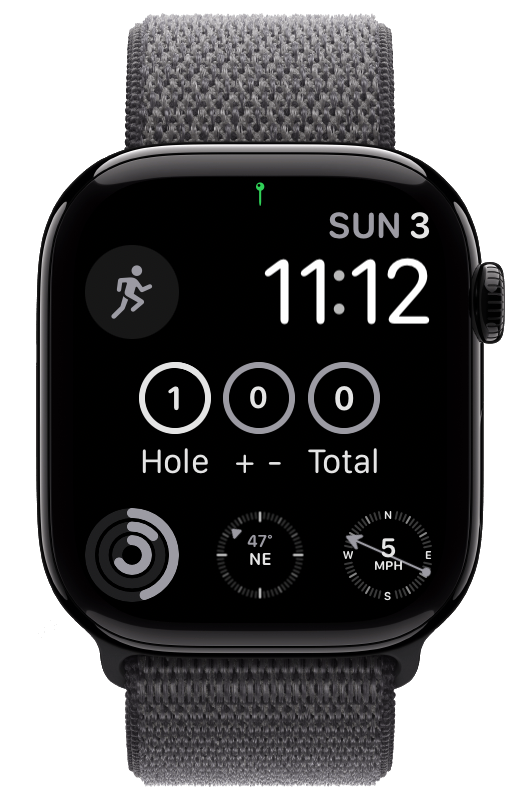
For playing golf I have a one-screen focus mode filled only with widgets. I use my own app for tracking my golf scores. I have two widgets from GolfScore showing my stats for the game. I also have a weather widget and the activity widget to show my workout rings.
Reading
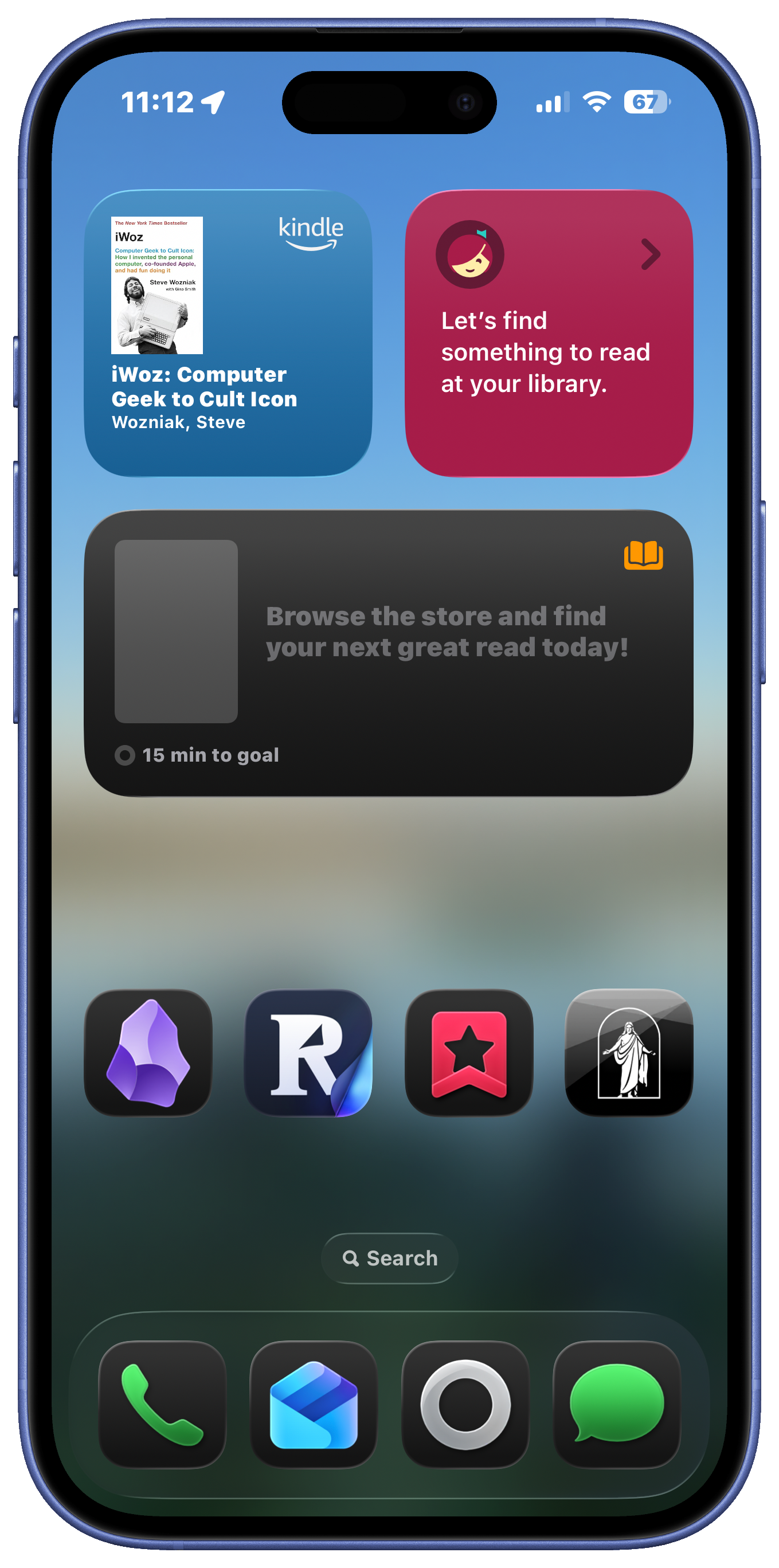
Reading is a natural fit for a focus mode. I have one home screen that activates when I switch to my reading focus, which includes widgets for Kindle, Libby, and Apple Books, as well as apps for my read-it-later services, GoodLinks, and church reading.
Driving
Driving is a built-in focus mode that activates automatically when I connect to CarPlay. It reduces distractions while driving. I do have a specific home screen activate, but it isn’t designed for specific apps. I have selected a wallpaper that stands out to me to indicate that I am driving.
Trial Modes
I have also experimented with these focus modes, but I don’t use them often:
- Music
- Recording
Focus modes take some time and attention to get set up at first, but as I have used them I find them very valuable in giving me the apps that I need when I need them. They help my brain know what I should be working on and when they automatically trigger it feels like magic.
-
I use Things for my to do list app, and I have my work-related tasks tagged with @work. The Things widget can be filtered by tag, so this Home Screen only shows my work-related tasks. ↩
-
I really could use just one Home Screen for my Personal Focus. My second Home Screen is more for development. I keep all of my personally-coded apps and widgets on this second screen. ↩
-
I wrote the app PracticeMeter to track my daily practicing and practice goals. ↩